# 2. Install Script (Docker)
{% hint style="warning" %}
**Early access:** You're on the Tashi Alphanet, a public testing phase. Real $TASHI is not involved, and all features are subject to change or reset.
{% endhint %}
## Run the Install Script
In a Linux terminal, run the following command:
```
/bin/bash -c "$(curl -fsSL https://depin.tashi.network/install.sh)" -
```
This will download and run the install script. If you're interested, you may view the script source [here](https://github.com/tashigg/tashi-depin-worker/blob/main/install.sh).
{% hint style="info" %}
If you don't have `bash` installed, you may substitute it with a compatible shell like `zsh`.
Previous versions of these instructions used `sh`, which only works on platforms that symlink `/bin/sh` to `/bin/bash`. The original Bourne shell `sh` does not have the required extensions for the script.
{% endhint %}
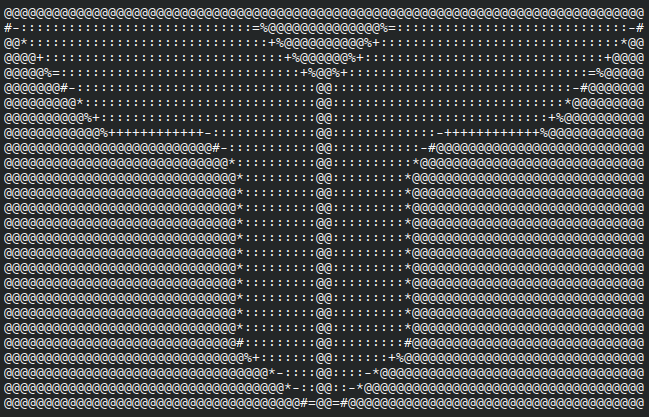
If the script is working, you should see the Tashi logo:
### System Checks
The install script will then perform various checks of the system to ensure that it meets the recommended system specifications and is configured correctly to run a DePIN node:
```
Starting system checks...
```
It will check for the presence of a multi-core processor:
```
CPU Check: ✓ Found 16 threads (>= 4 recommended)
```
Available memory in the system:
```
Memory Check: ✓ Found 31GB RAM (>= 4GB recommended)
```
Free disk space (the worker requires less than a gigabyte, but a full disk can cause other problems):
```
Disk Space Check: ✓ Found 1214GB free (>= 20GB required)
```
A supported container runtime (see [prerequisites](https://docs.tashi.network/node-operators/nodes/node-installation/prerequisites "mention") for details):
```
Container Runtime Check: ✓ Docker is installed
```
The worker container can be created without superuser privileges \
(see rootless setup in [prerequisites](https://docs.tashi.network/node-operators/nodes/node-installation/prerequisites "mention")):
```
Privilege Check: ✓ User is in 'docker' group.
Worker container can be started without needing superuser privileges.
```
And the system has access to the Internet:
```
Internet Connectivity: ✓ Device has public internet access.
```
If all these checks pass, you should see this:
```
System requirements met.
```
If one or more checks failed but the script has not exited, your system meets the *minimum* but not *recommended* requirements. The script will prompt you to continue:
```
System meets minimum but not recommended requirements.
Do you want to continue anyway? (y/N)
```
To ignore the warnings and continue with the installation, type `y` and press `Enter`.
If the script exits, your system does not meet the minimum requirements.
See [#failing-system-checks](#failing-system-checks "mention") for details. If you continue to have trouble, contact us for assistance.
### NAT Check
Next, the script checks whether the system is subject to [Network Address Translation](https://en.wikipedia.org/wiki/Network_address_translation) (NAT).
Many DePIN services require clients to be able to connect to your worker from the public Internet.\
If this is not possible, your worker will not be able to provide these DePIN services and your earnings will be less than a publicly accessible node.
If the script detects that your device is not subject to NAT, you may see this:
```
NAT Check: Open NAT / Publicly accessible (Public IP: ##.##.##.##)
```
If the script detects that your device *is* subject to NAT, you might see this:
```
NAT Check: NAT detected (Local: ##.##.##.##, Public: ##.##.##.##)
```
This is not necessarily an issue as long as your worker is accessible at the public IP shown, \
on UDP port `39065`.
See [#nat-detected](#nat-detected "mention") for details.
### Worker Setup
The script will then ask you if you want to enable automatic updates:
```
Enable automatic updates? (Y/n)
```
Press `Enter` to enable automatic updates, or type `n` and press `Enter` to disable them.
{% hint style="info" %}
Your DePIN worker will require periodic updates to ensure that it keeps up with new features and bug fixes.\
Out-of-date workers may be excluded from the DePIN network and be unable to complete jobs or earn rewards.
We recommend enabling automatic updates, which take place entirely in the container\
and do not make any changes to your system.
Otherwise, you will need to check the worker logs regularly to see when a new update is available,\
and apply the update manually. See [important-notes](https://docs.tashi.network/node-operators/nodes/node-installation/important-notes "mention") for details.
{% endhint %}
If all checks passed, the script prompts one final time before starting the installation:
```
Ready to install worker node. Do you want to continue? (Y/n)
```
Press `Enter` to continue.
{% hint style="info" %}
From this point, any lines printed starting with `+` are the commands the script is running to install the worker.
These are shown for transparency, especially if the script is having to invoke `sudo` due to a failed [#privilege-check](#privilege-check "mention").
If the use of `sudo` is necessary, you may be prompted for your password.
{% endhint %}
The script starts the worker in "interactive setup" mode:
```
Tashi DePIN Worker Interactive Setup
DePIN worker must be authorized by an operator address staked with $TASHI.
Navigate to the following page in your browser to complete setup:
https://depin.tashi.network/bond-worker?node=XXXXXXXXXXXXXXXXXXXXXXXXXXXXXXXXXXXXXX
When finished, paste the authorization token below and press Enter:
```
Navigate to the given URL in the web browser with your chosen Solana wallet installed.
Then, continue to the next section: [3.-bond-worker](https://docs.tashi.network/node-operators/nodes/node-installation/3.-bond-worker "mention").
{% hint style="info" %}
The URL is unique to your worker. The URL shown in the example above will **not** bond to your worker.
Your terminal may turn the URL into a clickable link. If you click the link and nothing happens, check if a new tab opened in an existing browser window.
Otherwise, highlight the URL with your mouse cursor and copy it to your clipboard, then paste it into your browser's address bar. See the documentation for your terminal emulator to find how to copy text.
{% endhint %}
### Failing System Checks
One or more checks run by the install script may fail; if this happens, the script may exit immediately, or emit a warning and then ask you if you want to continue.
Most of these checks may fail due to a simple misconfiguration, in which case you should abort the script by pressing `Enter` , then follow the resolution in one of the sections below. You may then simply re-run the script by repeating the command at the top of the [#run-the-install-script](#run-the-install-script "mention") section.
If you understand why the check failed and want to continue anyway, type `y` and press `Enter`.
#### CPU / Memory / Disk Space Checks
These checks are purely advisory. You may continue with the install script if they fail, but the worker may have reduced functionality.
{% hint style="info" %}
If your system is running out of disk space, you are likely to experience other issues besides running the DePIN worker. Maintaining sufficient free disk space is an important part of keeping a computer system running properly. Look for instructions for your operating system on how to free up disk space.
{% endhint %}
#### Container Runtime Check
If you do not have a supported container runtime installed, you will see this message:
```
Container Runtime Check: ✗ Neither Docker nor Podman is installed.
```
You need to install either Docker or Podman (and if applicable, follow the recommended steps to enable creating containers without superuser privileges) as mentioned in [prerequisites](https://docs.tashi.network/node-operators/nodes/node-installation/prerequisites "mention").
#### Privilege Check
If you did not configure rootless containers as recommended in [prerequisites](https://docs.tashi.network/node-operators/nodes/node-installation/prerequisites "mention"), you may see one of these messages:
```
Privilege Check: ⚠ User is not in 'docker' group.
```
```
Privilege Check: ⚠ User cannot create rootless Podman containers.
```
For various reasons which are out of scope of this document, creating a container requires superuser privileges by default. The install script prefers to avoid this if at all possible because granting superuser privileges to a script downloaded over the internet has significant security implications.
{% hint style="warning" %}
We do **not** recommend running the install script itself with `sudo` as that effectively gives the install script access to your entire system. We don't want that kind of responsibility.
{% endhint %}
To resolve this, we recommend configuring your container runtime to allow running without superuser privileges:
* Docker: follow the [Linux Post-Install Steps](https://docs.docker.com/engine/install/linux-postinstall/) (Manage Docker as a non-root user)
* This also applies to Windows Subsystem for Linux.
* Advanced users may consider setting up [Docker in rootless mode](https://docs.docker.com/engine/security/rootless/)
* Podman: follow the [rootless environment tutorial](https://github.com/containers/podman/blob/main/docs/tutorials/rootless_tutorial.md)
If you choose to continue the install script when prompted, the install script will invoke `sudo` to create the worker container, at which point you will be prompted to enter your Linux user password. The exact command being invoked is printed out for transparency.
{% hint style="info" %}
If you get an error saying "your user is not in the sudoers file", you need to follow the instructions for your Linux distribution to configure `sudo` for your user. Or enable rootless containers as shown above.
{% endhint %}
#### Internet Connectivity Check
All DePIN services require access to the Internet. This check attempts to ensure this.
There are only a few scenarios where this check fails:
* Your device does not currently have access to the Internet, in which case you should take steps to resolve this.
* Neither cURL or `wget` is installed, which is only possible if you did not use either of these tools to run the install script in the first place. Follow the instructions for your Linux distribution to install one of these tools.
* Your device does not have up-to-date TLS root certficates installed. Follow the instructions for your Linux distribution to install them.
* The DNS lookup for `google.com` failed. Check your DNS configuration or try different DNS servers.
* Something else interfered with the connection attempt.
{% hint style="info" %}
This check simply attempts to connect to `https://www.google.com/`
{% endhint %}
### NAT detected
This message will appear if your system appears to be subject to [Network Address Translation](https://en.wikipedia.org/wiki/Network_address_translation) (NAT), meaning that the IP address the device sees for itself is different than the IP address it may be reachable at.
This is a common situation for devices on home networks, which share a single Internet connection over Wi-Fi or Ethernet. When a client attempts to connect, your modem or router (the device that provides the Internet connection) will have no idea which device on the network to connect them to, and will drop the connection.
This is likely the case even if your device is the only one currently using the Internet connection. \
Many mobile data connections are also subject to NAT.
This is an issue because the highest-rewarding DePIN services require that clients are able to connect directly to your worker node. If clients are not able to connect directly to your worker node, it may still be able to provide *some* DePIN services, but not all of them.
You may continue with the installation, but note that if your worker node is not accessible from the Internet, your DePIN earnings may be reduced significantly.
To resolve this, look for instructions on how to configure [port forwarding](https://en.wikipedia.org/wiki/Port_forwarding) for your specific modem or router. If the modem/router is provided by your Internet Service Provider (ISP), you may need to contact them for assistance.
Forward UDP port `39065` to your device to ensure it is Internet-accessible.
---
# Agent Instructions: Querying This Documentation
If you need additional information that is not directly available in this page, you can query the documentation dynamically by asking a question.
Perform an HTTP GET request on the current page URL with the `ask` query parameter:
```
GET https://docs.tashi.network/node-operators/nodes/node-installation/2.-install-script-docker.md?ask=
```
The question should be specific, self-contained, and written in natural language.
The response will contain a direct answer to the question and relevant excerpts and sources from the documentation.
Use this mechanism when the answer is not explicitly present in the current page, you need clarification or additional context, or you want to retrieve related documentation sections.